Contents
This section is applicable to the components Time Series – Line Chart, Time Series – Bar Chart and Time Series – Stacked Chart.
Data
Similar to the map and the bar chart components you can also set the time series chart to display values from a column other than the indicator column. To do this type in the name of the associate column into the property ‘Data’ of the Time Series Chart Properties.
X-Axis Label and Y-Axis Label
If you wish to show labels along the X and Y-Axis you can also define this in the Time Series Chart Properties.
Exportable?
If this box is ticked you will see an export button in the top right hand corner of the time series chart when you hover it with the mouse. Clicking this button will open the time series chart graphic as an image in a pop-up window. From there you can save the image through the right-click menu.
Orientation
You can set the orientation of the time series chart to be vertical or horizontal.
Match Axis to Data?
By default the data axis of the time series chart will show values rounded to the next logical interval. If you tick this property the minimum and maximum value of the data axis will be the same as the minimum and maximum value of the selected indicator/time period.
Use Fixed Values?, Fixed Minimum Value and Fixed Maximum Value
You can define fixed minimum and maximum values for the time series chart – however these settings will apply to the whole report. If you wish to define fixed values on a theme, indicator or time period basis you should do it through the Metadata of your data files. Please refer to section ‘Setting the Chart Axis Minimum and Maximum‘.
Note: Time Series – Stacked Chart does not have a Fixed Minimum Value property.
List Of Dates To Ignore
It is possible to remove specific dates from the Time Series Charts (and the Time Animation). This can be useful e.g. if the indicator contains a time series and an additional ‘Total’ or ‘Average’ column. In this case it makes sense to hide the ‘Total’ or ‘Average’ column from the Time Series Chart (and the Time Animation if required) by adding them to the ‘List Of Dates To Ignore’ property. The hidden dates can still be selected through the Data Explorer and thus displayed in the other atlas components.
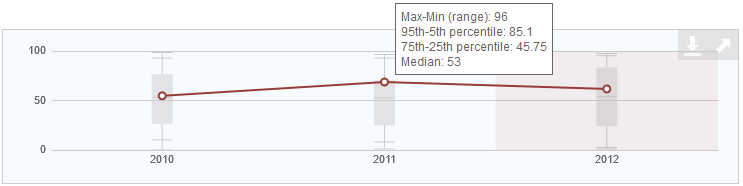
Show Box And Whisker (Time Series – Line Chart only)
It is possible to show box and whisker plots on each data point of the Time Series – Line Chart. The values get calculated automatically by the dynamic report out of all available indicator values for all areas for the respective date. A separate tooltip shows these values.